
Streaming software controls the production side of your live stream. It captures your camera and mic, mixes your sources, and sends the finished stream to one or more streaming destinations (opens in new tab) . Hosting platforms (opens in new tab) solve a different problem. They store your videos, deliver them to viewers, and handle monetization.
This guide compares seven popular streaming tools, including StreamYard, OBS, Restream, and vMix. You’ll learn what each tool does best, how much it costs, and which one fits your setup. It also explains what you’ll need after you’ve gone live. If your goal is to build a paid audience (opens in new tab) , you’ll need more than streaming software.
Streaming software comparison: TL;DR
| Software | Best for | Price | Browser-based or local | Multistreaming |
|---|---|---|---|---|
| StreamYard | Beginners, guest interviews | Free, paid from ~$45/mo | Browser | Yes, on paid plans |
| OBS Studio | Full control, no cost | Free | Local | Via plugins or Restream |
| Streamlabs Desktop | Gaming streams | Free, Ultra $27/mo ($189/yr annual) | Local | Yes, on Ultra |
| Wirecast | Multi-camera events | From $35/mo (Studio), $46/mo (Pro) | Local | Yes |
| XSplit | Lightweight, Zoom/Skype guests | From ~$5 to $15/mo | Local | Yes |
| Restream | Reaching many platforms at once | Free, paid from ~$16/mo | Browser | Yes, that’s the point |
Also worth considering: If you’re building a paid membership or subscription video business, you’ll eventually need a platform that handles hosting, monetization, and audience management after the live moment ends. See the section below on platforms built for membership.
What is streaming software?
Streaming software captures your live video and sends it out to viewers in real time. It pulls in your camera and microphone, lets you mix in multiple sources like screen shares or guest feeds, and pushes the finished broadcast to wherever you’re streaming, whether that’s YouTube, Facebook, or your own website.
Say you’re running a weekly Q&A. Streaming software lets you switch between your camera and a slide deck midstream, add your logo as a watermark, and go live on two platforms at once.
What it doesn’t do is stick around after the broadcast ends. Once your stream is over, streaming software’s job is done. That’s where a hosting platform comes in. A hosting platform stores your videos, delivers replays whenever someone wants to watch, and can handle subscriptions or one-time purchases so you actually get paid for your content.
Most people end up using both together: streaming software for the live production, and a hosting platform for everything that happens once the camera turns off.
| Streaming software | Hosting platform |
|---|---|
| Captures video | Stores videos |
| Mixes scenes | Delivers playback |
| Sends stream live | Manages viewers |
| Controls production | Handles subscriptions |
Your camera and mic feed into the streaming software, which sends the finished stream (opens in new tab) to one or more destinations.
1. StreamYard: Best streaming software for beginners
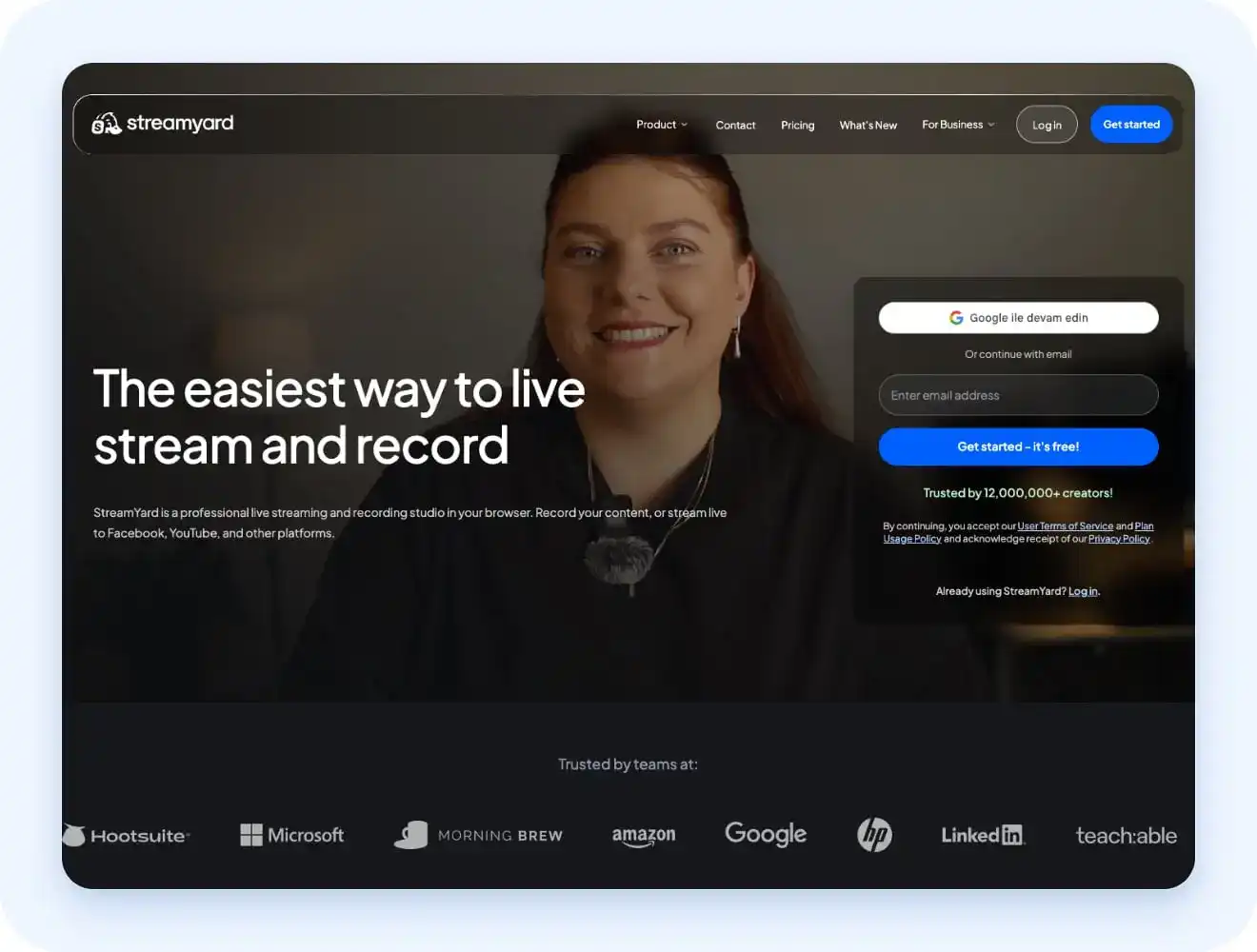
StreamYard (opens in new tab) is the easiest starting point if you’ve never streamed before. It runs right in your browser, so there’s nothing to download or install. You just open a link, add your camera and mic, and go live. You can invite guests with a simple link, no software needed on their end. It records to the cloud automatically, so you don’t lose anything if your computer crashes mid-stream.
There’s a free plan to get started. Paid plans (opens in new tab) begin at about $45 a month, or less on annual billing. They remove the watermark and add features like multistreaming (opens in new tab) . If you run weekly interviews or panel-style shows and don’t want guests installing anything, StreamYard is usually the least friction you’ll find.
StreamYard works well for interviews, webinars, podcasts, and business live streams where ease of use matters more than advanced production features. The trade-off is that it offers fewer customization options than desktop software like OBS or vMix, so experienced users may eventually outgrow it.
2. OBS Studio: Best streaming software for advanced or technical users
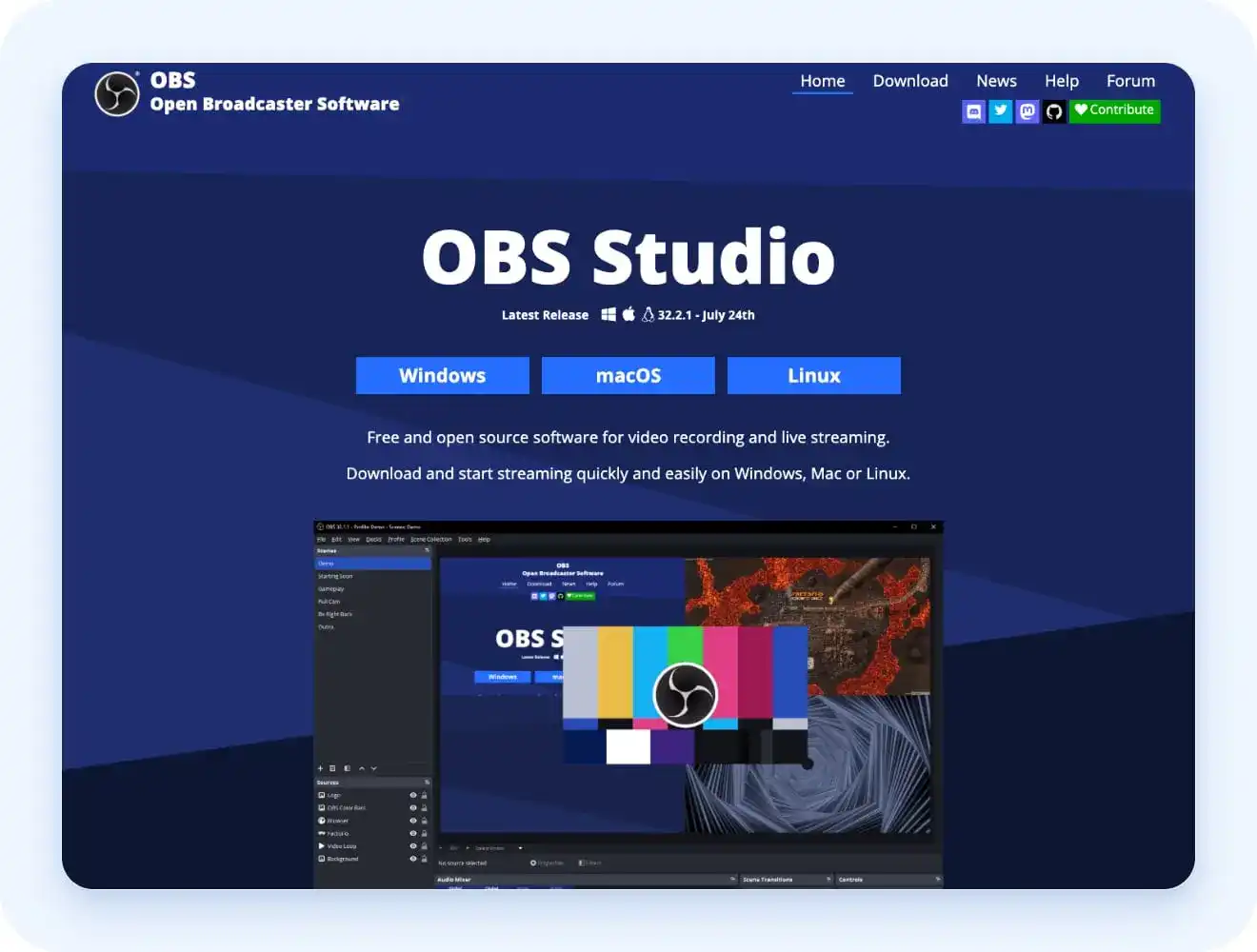
OBS Studio (opens in new tab) is a free, open-source platform for people who want complete control over their live production. You get full control over scenes, sources, and encoding settings. Expect a learning curve, especially in your first few streams.
If you enjoy tweaking every detail of your setup, OBS rewards that more than any browser-based tool on this list.
OBS supports multiple scenes, custom transitions, plugins, audio mixing, recording, and streaming to virtually any platform. Because it’s open source, there’s a large community that creates plugins and tutorials. The biggest downside is its learning curve, so beginners may need time to become comfortable with the interface.
3. Streamlabs Desktop: Best streaming software for gaming streams
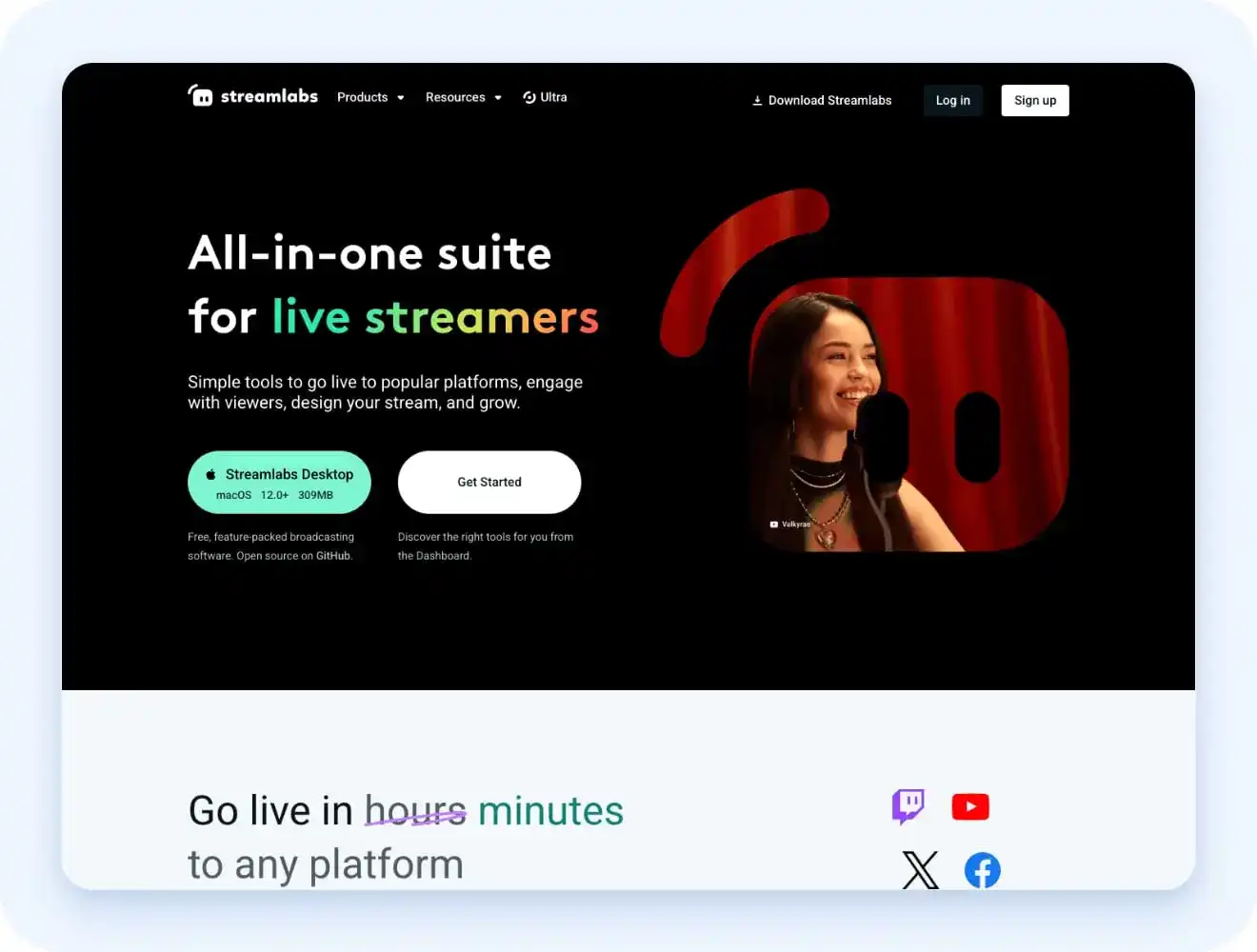
Streamlabs Desktop (opens in new tab) is built on the same engine as OBS, but adds alerts, overlays, and widgets out of the box. It’s a favorite for gaming streams. The free version includes everything many streamers need to get started.
The Ultra plan (opens in new tab) costs $27 a month, or $189 a year if you pay annually, and adds multistreaming plus a larger library of themes. If you stream games on Twitch or YouTube, it gets you up and running faster than configuring OBS from scratch.
Streamlabs is designed primarily for gaming and live content where overlays, alerts, and audience interaction are important. It simplifies many OBS features by including pre-built themes and widgets, making setup faster for newer streamers. However, it doesn’t offer the same level of flexibility as OBS for advanced production workflows.
4. Wirecast: Best streaming software for multi-camera live productions
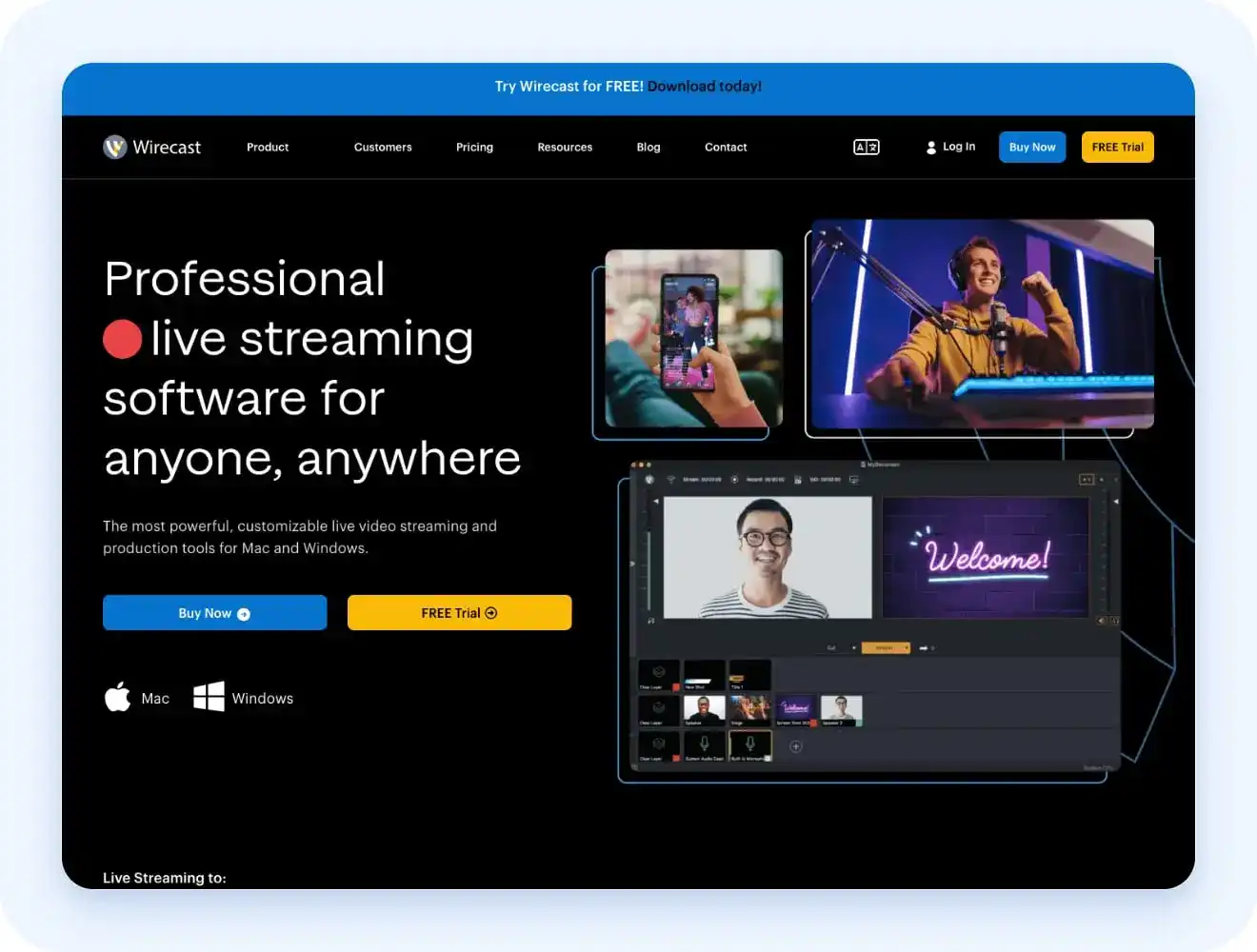
Wirecast (opens in new tab) is a common choice for productions that use multiple cameras, including church services, sports broadcasts, conferences, and live events. It supports multiple camera inputs, titles, and graphics, making professional production workflows easier than with simpler streaming tools. Plans start (opens in new tab) around $35 a month for Studio or $46 a month for Pro.
One of Wirecast’s strengths is its ability to manage several video and audio sources within a single production. You can switch between cameras, presentations, screen shares, and graphics without interrupting the broadcast, making it well suited to events with multiple moving parts.
Compared with beginner-focused streaming tools, Wirecast offers more advanced production capabilities but comes with a steeper learning curve. It’s best suited to teams or organizations that produce live events regularly and need greater control over their broadcasts
5. XSplit: Best streaming software for lightweight desktop streaming
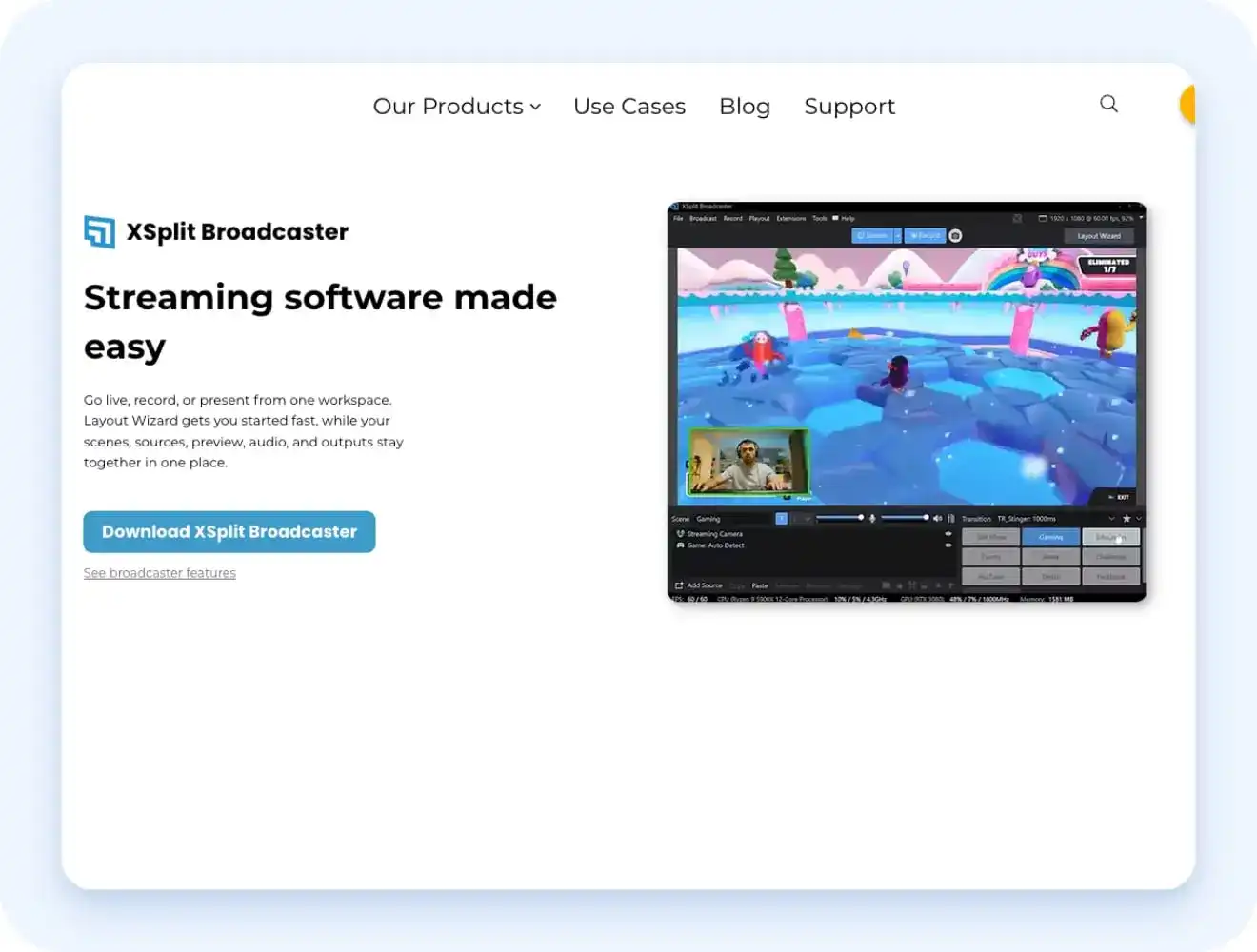
XSplit (opens in new tab) is a practical middle ground for people who want an easier desktop streaming tool without giving up advanced production features. It’s lighter on your computer than many alternatives. It also lets you bring in guests from Zoom or Skype, a feature that’s less common in other streaming tools.
XSplit Broadcaster plans start (opens in new tab) at around $5 per month, depending on your subscription, with higher-priced plans available for additional features. If your computer struggles to run heavier software, this is often the more forgiving option.
XSplit offers a balance between ease of use and advanced functionality. It requires less setup than OBS while still providing scene management, recording, and streaming features. It’s especially useful for users with lower-powered computers or those who regularly invite guests from video conferencing platforms.
6. Restream: Best software for multistreaming
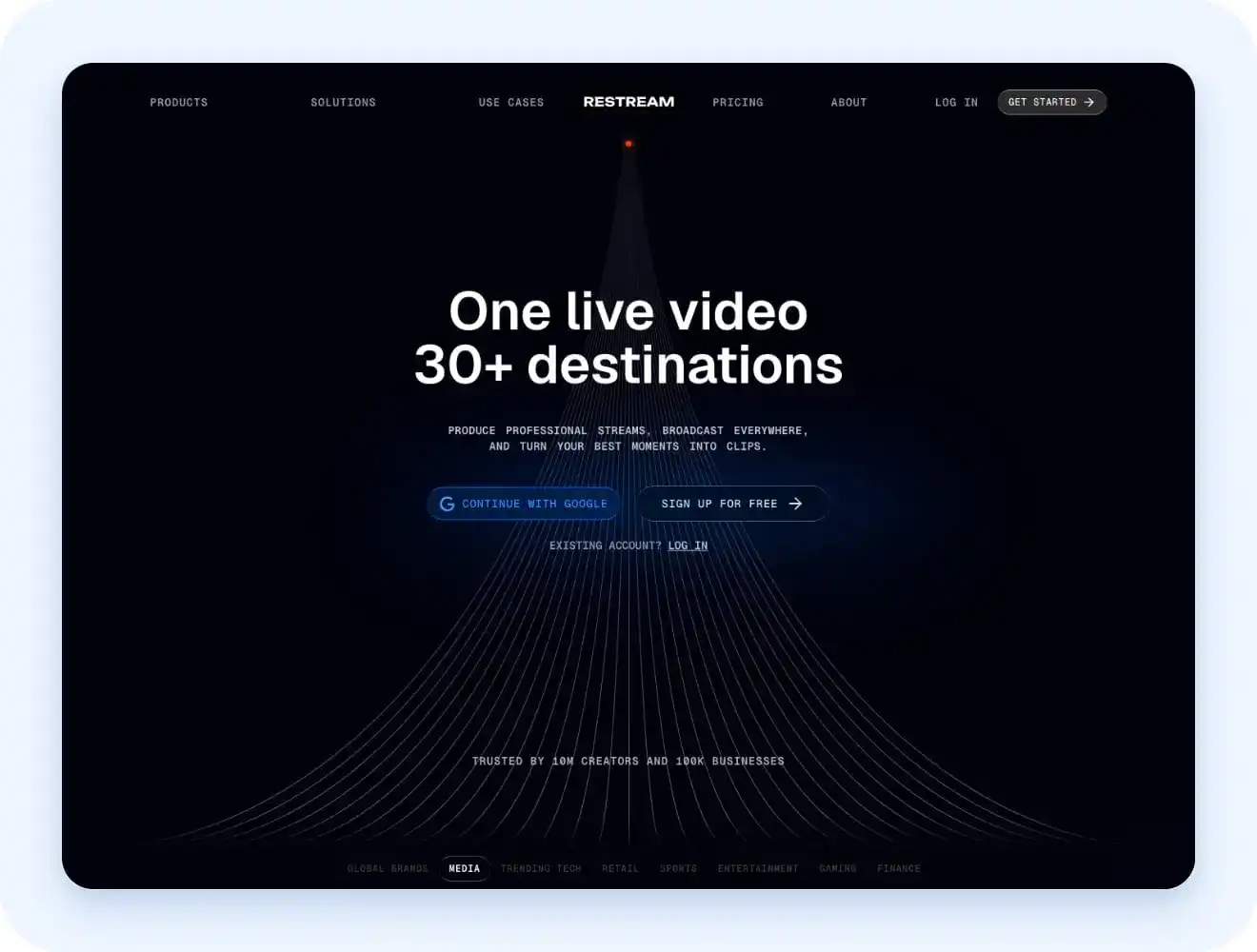
Restream (opens in new tab) is built for anyone who wants to broadcast one live stream across multiple platforms without managing separate broadcasts. You can use it on its own from your browser, or pair it with a desktop tool like OBS (opens in new tab) if you want more control over scenes, layouts, and production.
Restream’s free plan covers a handful of destinations, though exact limits shift from time to time. Paid plans start (opens in new tab) around $16 to $19 per month, depending on billing and features, and add more destinations, higher streaming limits, and additional capabilities.
Beyond multistreaming, Restream offers features such as unified chat, scheduled events, analytics, and browser-based streaming, making it useful for webinars, product launches, live events, and marketing broadcasts.
How streaming software works with membership platforms
Here’s the thing most people realize after a few streams: the streaming tool gets you live, but it doesn’t build a business.
A live stream happens once. Your audience watches in real time or they miss it. If someone finds you a week later, that stream is gone. There’s nowhere for them to sign up, no way to charge them, and no record of what they watched.
That’s where the workflow gets interesting. Most serious broadcasters use streaming software for the production side and then connect it directly to a membership platform that handles everything else.
The workflow looks like this:
- Produce your stream with StreamYard, OBS, or whichever tool fits your production needs.
- Stream directly to your membership platform (like Uscreen) via RTMP.
- Your platform records the stream, automatically saves it, and makes it available to your members on demand.
- Build recurring revenue by putting your streams behind a subscription, offering pay-per-view access, or selling bundles.
- Keep members engaged between streams with community features, a content calendar, and email automations that bring people back.
This integration means you get the best of both: advanced production control in your streaming tool of choice, plus a complete membership business in a dedicated platform.
Uscreen, for example, supports direct streaming from OBS, StreamYard, and any tool that outputs RTMP. That means you can produce your stream exactly how you want, then let Uscreen handle hosting, monetization, apps, community, and all the infrastructure that turns a broadcast into a business.
The same goes for other membership platforms. The point is: your streaming software and your membership platform work together, not against each other. You pick the streaming tool that matches your production needs, then pick the membership platform that matches your business model.
How to choose the right streaming software
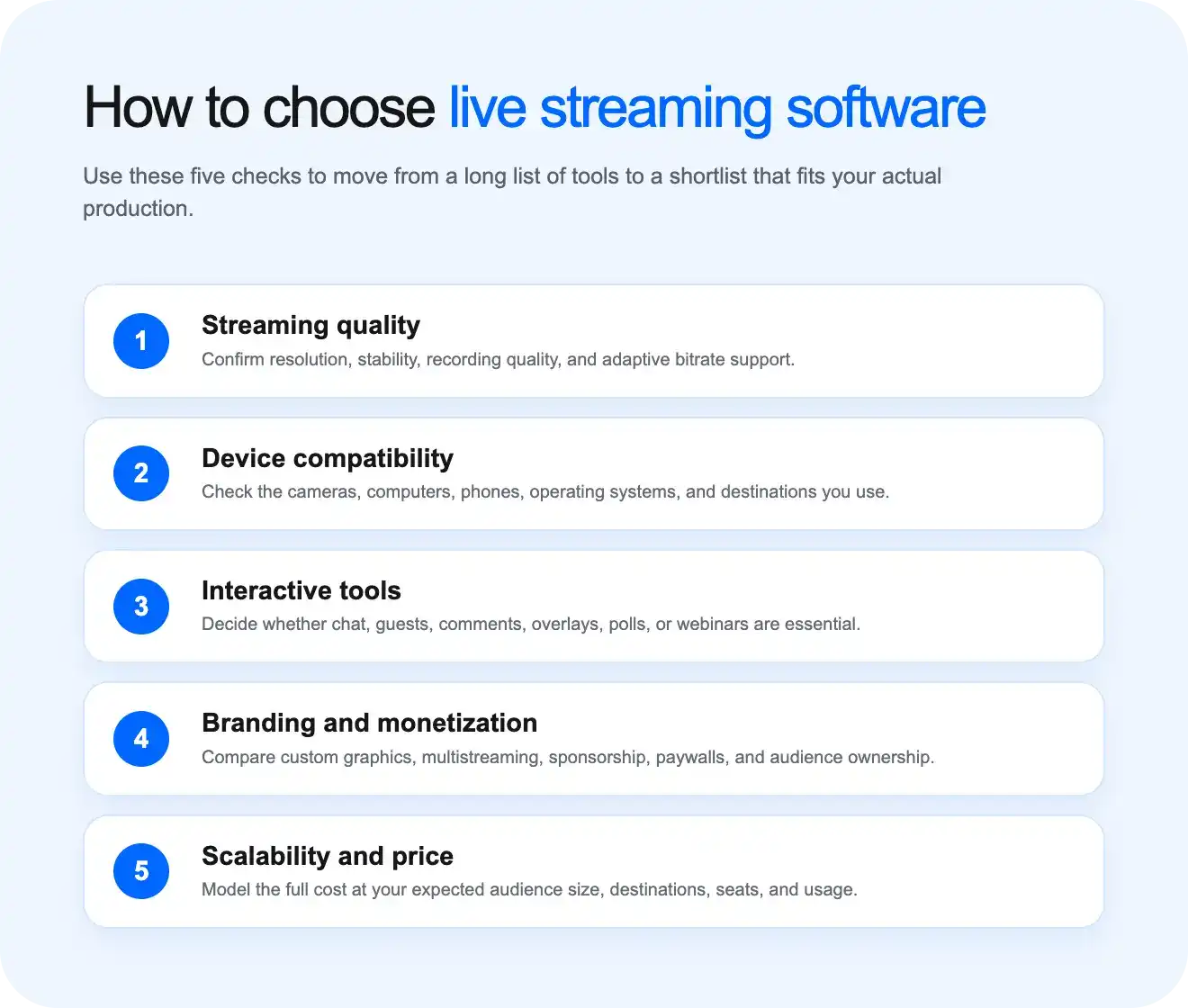
The right streaming software comes down to what your stream actually needs to do, not which tool has the longest feature list. A weekly interview show has different requirements than a multi-camera church service or a solo gamer on Twitch, and picking based on popularity instead of your actual workflow is the most common way people end up paying for features they never touch.
Here’s what actually matters when you’re comparing options:
- Hosting interviews or webinars: Pick StreamYard. It runs in your browser, so guests join with a link instead of installing software, and everything records to the cloud automatically. That’s the setup most panel shows and podcast-style interviews need without extra setup for either side.
- Wanting full creative control: Pick OBS Studio or Streamlabs. Both give you hands-on control over scenes, sources, and encoding, so you’re not boxed into a template. OBS is the rawer, more flexible option, while Streamlabs adds alerts and overlays if you’re streaming games.
- Running a multi-camera event: Pick Wirecast or vMix. Sports games, church services, and conferences all need to switch between several camera feeds live, and these two are built specifically for that kind of multi-source production.
- Streaming to several platforms at once: Pick Restream. If your goal is reaching YouTube, Facebook, and LinkedIn simultaneously without separate logins for each, that’s the one job Restream is built to solve.
Whichever tool you land on, remember it only handles the live broadcast. Once you’re ready to turn those streams into a recurring, paid audience, you’ll need a platform like Uscreen to store the replays, manage memberships, and put everything behind your own branded app.
Turn your streams into a sustainable business
Streaming software solves one problem: getting your video out live. If you’re streaming a single event to a free platform like YouTube Live (opens in new tab) , that’s all you need, and you can stop right there.
But if you’re streaming regularly and trying to build something out of it, that setup runs out fast. Your shows vanish the second you go offline. Anyone who misses the live moment has nowhere to catch up, and there’s no way to actually charge for access.
That’s a platform problem, and membership platforms like Uscreen are built to solve it:
- A platform that hosts your videos: Every stream you run gets saved and organized into a library your audience can rewatch anytime, not just during the live window. That turns a one-off broadcast into an asset you can keep selling.
- Something that keeps viewers engaged: Live chat, community features, and a content calendar give people a reason to come back between streams rather than show up once and forget you exist.
- A way that handles payments: Subscriptions, one-time purchases, and rentals mean going live doesn’t mean giving your work away for free.
If you’re ready to move beyond streaming software and build a membership business around your live content, learn how Uscreen works as a membership platform (opens in new tab) .